

Appearance
Interactive playground and editor for Ogma
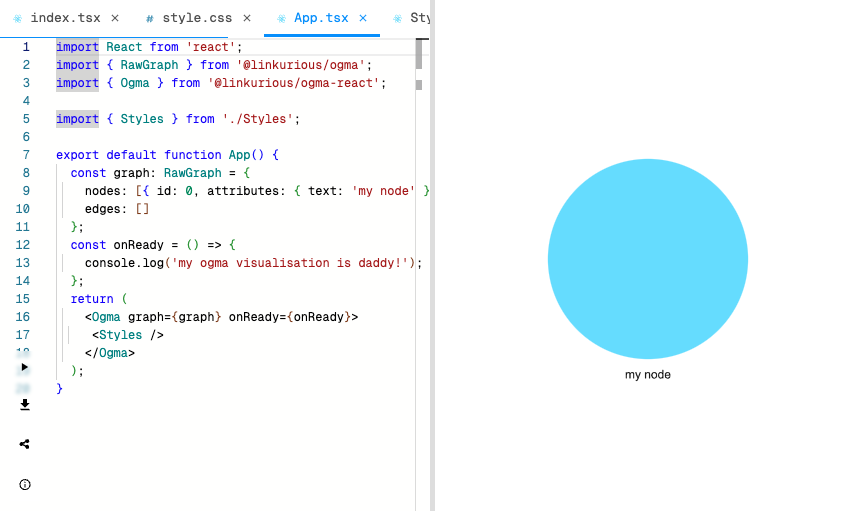
With the release of Ogma 3.2 we’re happy to introduce a new feature on our website that will simplify development with Ogma. There are many examples on the website that help demonstrate the capabilities of Ogma. Now, every example can be edited live within your browser which will allow you to save and share the results, all through a single, secure link*.
You can check out the new feature on the Ogma Playground.
How can I leverage the new Ogma Playground?
With this new feature, you’re able to develop prototypes directly within our documentation website. You can also change the examples to test your ideas or to try out new styles. Just pick an example of the documentation and adapt it to your needs so it kickstarts the development of your project.
By using the Ogma Playground, you’ll also benefit from more streamlined support. It’s now much easier to share any challenges with our support team by simply using the URL of your browser.
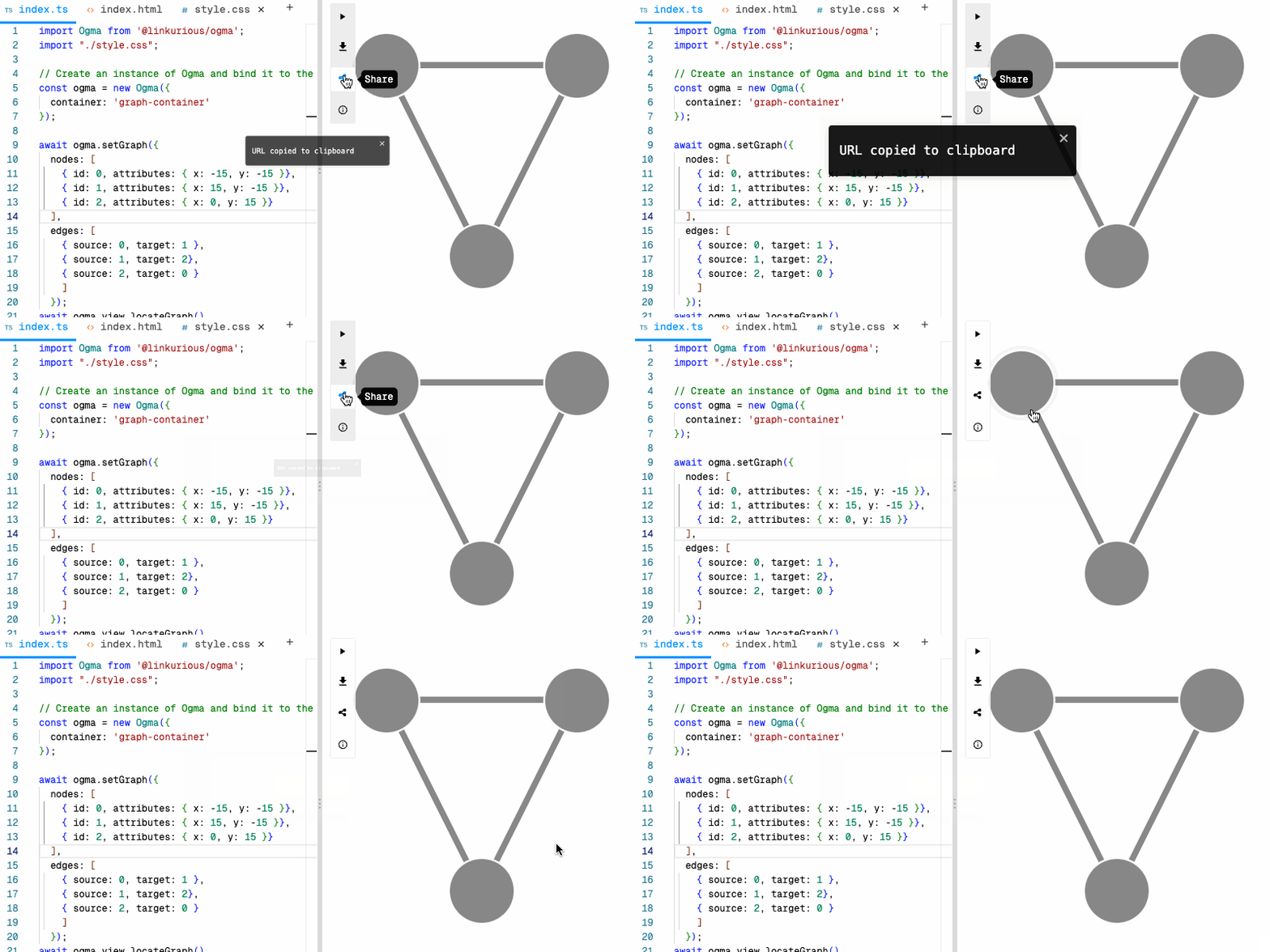
How does the editor work?
The editor features the full power of autocomplete based on the Ogma code and documentation, so you can write the code faster and you won’t get lost in various API methods and signatures: it’s also a nice way of starting to learn Ogma without having to set up the environment!
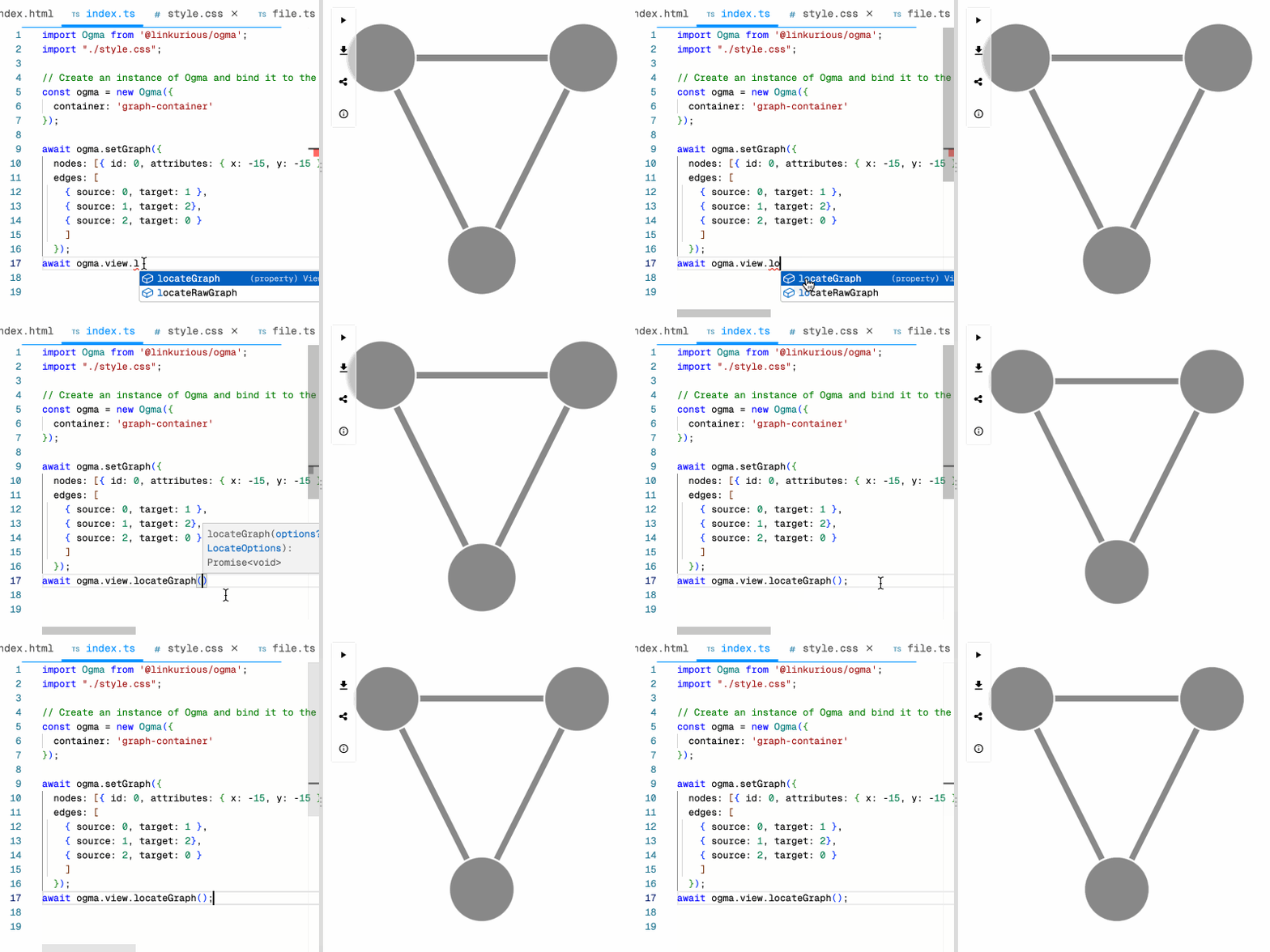
Code auto-complete
Code auto-completion speeds up the process of coding by reducing typos and other common mistakes. A popup may appear when typing, suggesting a list of functions and their parameters, types, variables, usage examples, documentation, etc.
Hot reloading
The editor also features hot-loading which will update the preview 3s after each code change (or instant-reload by pressing CTRL / CMD + S).
Adding files to the playground.
You can add a .json or .js, .ts, .tsx files to the playground using the 'Add new' button. You can then require or load them in your code. See example in the playground. This way you can play around with the exempts of your data and add isolated code snippets to re-use them in your prototype.
Download and run your code locally
You can also download all your code in a zip file (ready to run) by clicking the download button. The resulting archive contains a boilerplate for your project using parcel bundler. Ogma is not included in the archive, you will have to download it from get.linkurio.us. To do that, you just need to edit your API key in the package.json file and npm will download it for you when you do npm install. After that, all you need to run your project locally is to run npm start.
Sharing your code and support
You can share the editor links with your colleagues and with Ogma support. This is the best way to share your challenges and code issues with us and get the support. No more archives and badly formatted pieces of code in your emails: just reproduce your solution in the playground, add a safe piece of data and paste the link into the support message. We will see the issue, edit the code and send you back the solution!
Stay tuned for new updates!
We are constantly working on improving the developer experience with Ogma, if you have any questions or would like to learn more about these updates, feel free to contact us!
Technical note about security
- Note that we never upload or store any of your data on our servers. Your data and source code are encoded in the link and are transmitted with it. It is therefore strongly advised not to share links with your confidential data in the editor.
Importing design tokens from your design system
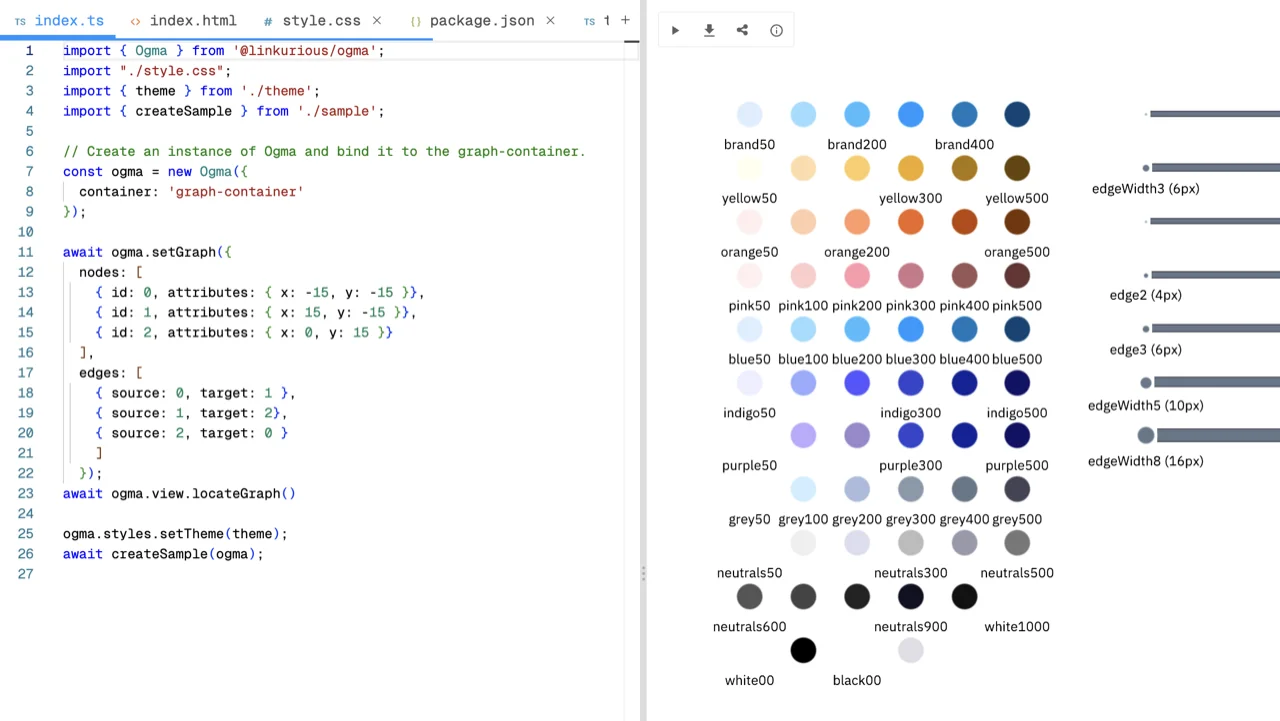
The playground can read a Tokens Studio design-token JSON file and instantly turn it into a ready-to-use TypeScript theme for Ogma. This shortens the round trip between the design system and the visualisation code: designers export the brand tokens once, and developers get typed, named constants wired directly to ogma.styles.setTheme() — no manual translation needed.
Getting a design token file
Exporting tokens from Figma
Install the Tokens Studio for Figma plugin, open your design file, and export the token set as a single .json file using Export → JSON. The playground accepts the standard Tokens Studio v1 and v2 JSON formats.
For a step-by-step guide see the Tokens Studio export docs.
Drag-and-drop onto the editor
- Make sure you are on the Code tab of the editor panel.
- Drag your token
.jsonfile from your file manager and hover it over the editor area — a branded dashed drop-zone overlay appears to confirm the target. - Release the file.
The playground validates the file, parses it, and creates (or overwrites) a theme.ts tab in the editor. A success toast confirms that the import completed.
What gets generated
theme.ts contains four named exports:
ts
// All colour primitives, one key per token (camelCase)
export const palette = {
  grey400: "#617083",
  brand300: "#0099ff",
  coolGrey300: "#99a1af4d",
  // …
};

// Numeric sizing tokens, prefixed by element type
export const sizing = {
  nodeRadius5: 5,
  edgeWidth1: 1,
  // …
};

// Font-family and weight constants (Ogma-compatible CSS values)
// Load these font families before using the theme (e.g. in index.html):
//   <link rel="stylesheet" href="https://fonts.googleapis.com/css2?family=IBM+Plex+Sans">
export const fonts = {
  font: "IBM Plex Sans",
  styleNormal: "normal",
  styleBold: "bold",
  // …
};

// Ready-to-pass theme object for ogma.styles.setTheme()
export const theme = {
  nodeAttributes:         { color: palette.grey400, /* … */ },
  hoveredNodeAttributes:  { color: palette.brand300, /* … */ },
  selectedNodeAttributes: { /* … */ },
  disabledNodeAttributes: { color: palette.coolGrey300 },
  edgeAttributes:         { /* … */ },
  hoveredEdgeAttributes:  { color: palette.brand300 },
  // …
};
Token references such as {Grey.400} are resolved to their named constant (palette.grey400) rather than an inline hex value, so colours stay in sync if you regenerate the theme later.
Applying the theme with one click
After theme.ts is generated, a banner slides up at the bottom of the editor pane:
Theme ready — Drop detected and
theme.tscreated. [Add to index.ts] [Dismiss]
Clicking Add to index.ts automatically:
- Inserts
import { theme } from './theme';after the last existing import inindex.ts. - Appends
ogma.styles.setTheme(theme);at the end of the file. - Re-runs the playground so you see the result immediately.
If you prefer to wire the import manually, click Dismiss and edit index.ts yourself.
Error states
| Situation | Feedback |
|---|---|
| The dropped file is not valid JSON | Error toast: "Could not parse the file as JSON." |
| The JSON is valid but not a Tokens Studio token file | Error toast: "File does not look like a Tokens Studio token file." |