
Annotations: Sticky Notes
Adding a sticky note
Click on the sticky note icon in the right-hand toolbar, then click on the visualization where you want the note to appear, or drag to give the note the size you want. Type your text directly in the note.
Sticky notes are available in visualizations in the workspace and in the case view.
You can add sticky notes to a visualization that has not been saved yet, but, just like nodes and edges, they are only kept once the visualization is saved.
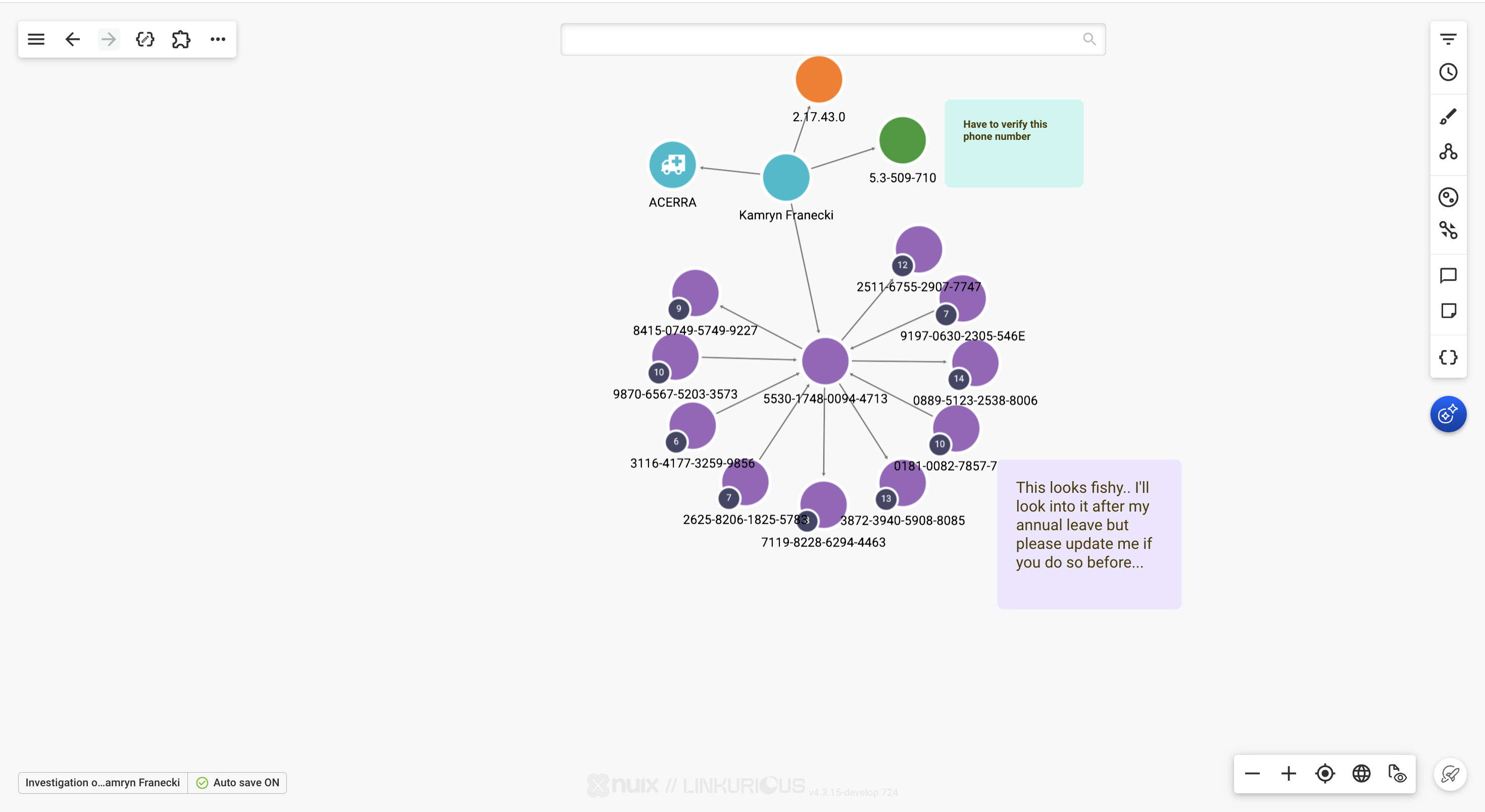
Formatting a sticky note
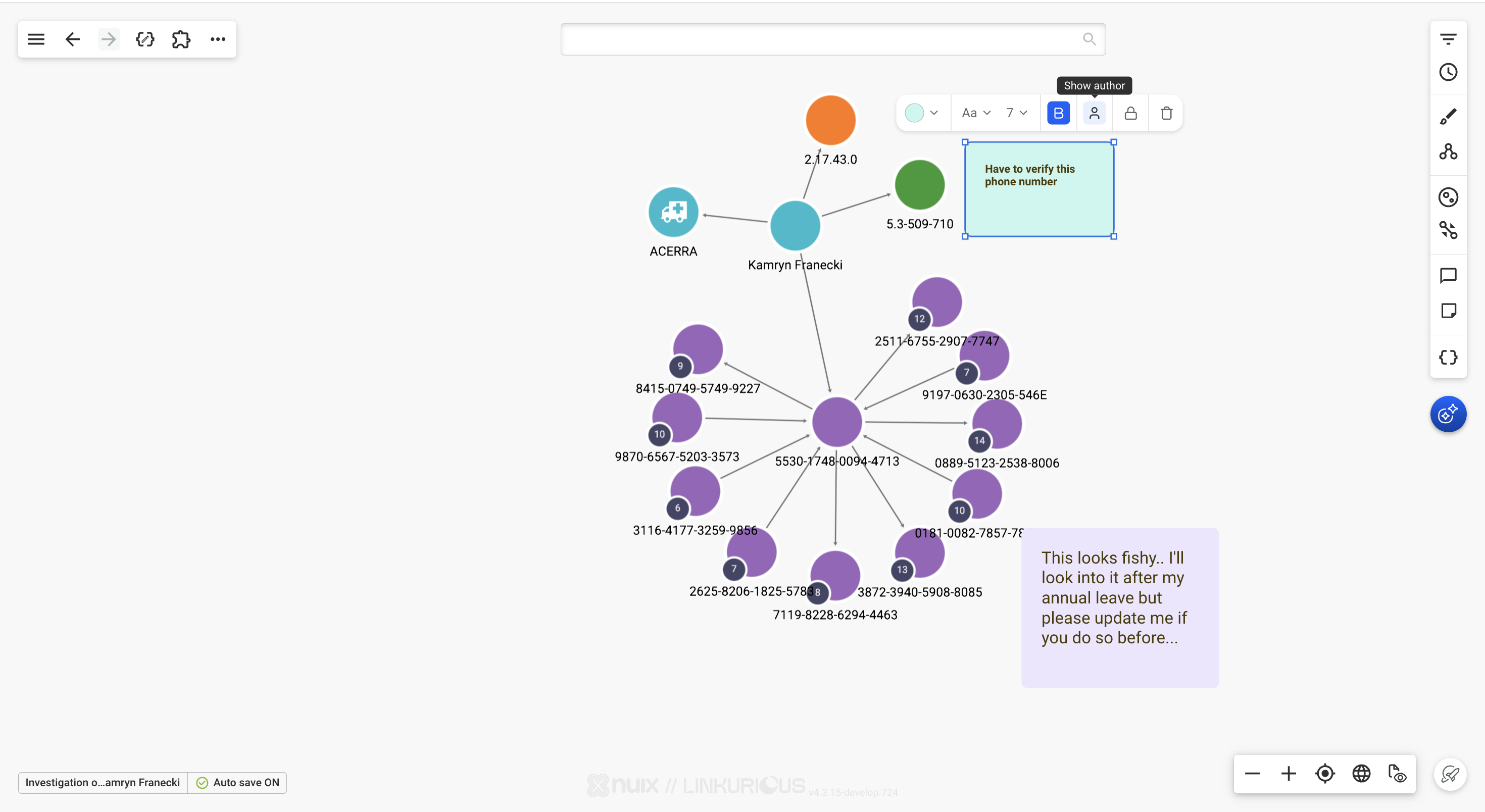
Select a sticky note to display its toolbar. From there you can:
- change the color of the note
- change the font of the text
- change the font size of the text
- make the text bold
- show or hide the name of the author of the note
- delete the note
To change the size of a note, drag one of its corners or one of its edges. The size of the text scales with the note.
Editing a sticky note
To edit the text of a note, click on it to select it, then click on it again. You can type directly in the note, on the visualization.
Moving and deleting sticky notes
Drag a sticky note to move it. Its position is stored as coordinates on the canvas and is not linked to any node or edge. Running a layout or expanding nodes will therefore not move your notes.
To delete a note, select it and click the delete icon in its toolbar, or press ctrl/cmd + backspace.
A sticky note can sit on top of nodes or edges that are added or moved later. If you suspect something is hidden, move the note.
Locking a sticky note
Select a sticky note and click the lock icon in its toolbar to lock it. A locked note can no longer be edited, moved or resized, which avoids changing it by mistake.
The toolbar remains available on a locked note, so you can click the lock icon again to unlock it.
The lock is saved with the visualization: a note locked by one user stays locked for everyone who opens the visualization.
Showing and hiding sticky notes
Use the View/Hide annotations control at the bottom right of the visualization to show or hide sticky notes and comments.
Sticky notes are not displayed in geo mode.
Saving and sharing
Sticky notes are saved with the visualization, like any other change. See Auto-save to control when your changes are saved.
Anyone who has access to the visualization can see them. They are also copied when you duplicate a visualization.
Exporting sticky notes
Sticky notes are included when you export a visualization as an image, in all the available image formats:
- SVG
- PNG
Only sticky notes that are currently visible are exported. If you have hidden them with the View/Hide annotations control, they will not appear in the exported image.